ArgoCD
Argo CD is a declarative, GitOps continuous delivery tool for Kubernetes
With ArgoCD you are able to
- see your applications in one place
- see better and understand easier the state of you application in the Kubernetes clusters
- promote your application to production (and roll it back) trivially
- finally have notifications about your deployments in Slack
- schedule automatic promotion to production environment
…all that and more, with less fuss and configuration.
If you want to get deep into ArgoCD, you can find the documentation here, but the next sections will detail the most important things you need to know.
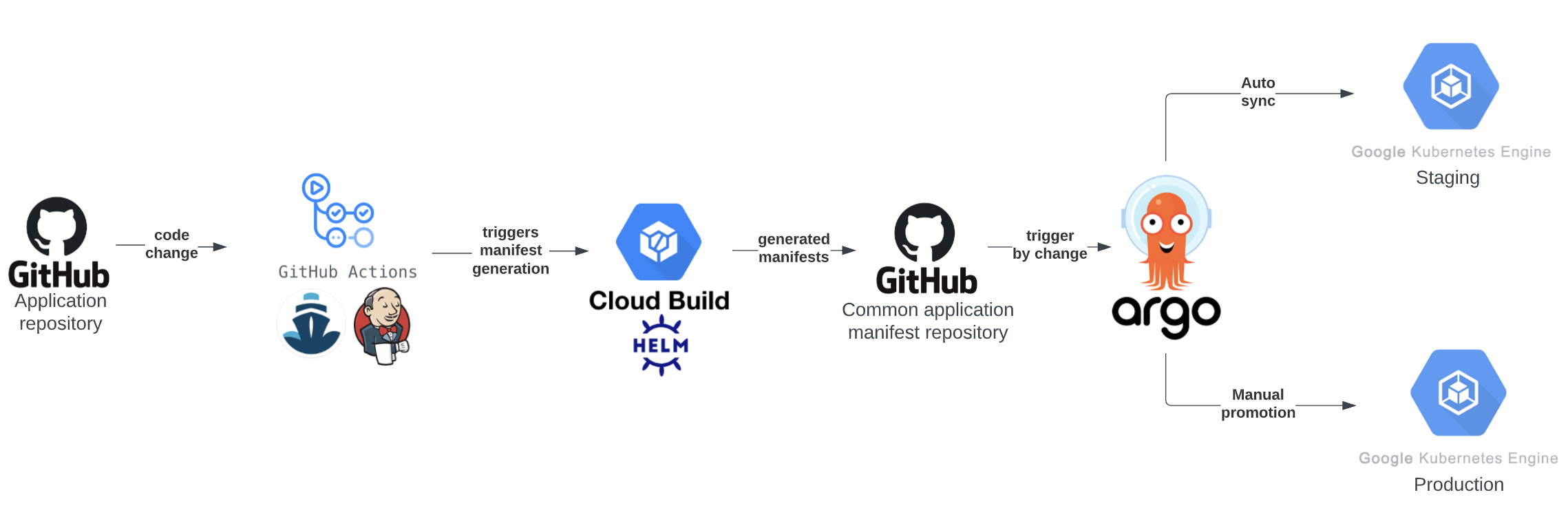
In the background at the end of the pipeline after generating the manifests for your application
- if the application is new to Argo a basic structure is created in the Application config repository, which essentially creates the application in Argo
- the created manifests are committed into the same repository
- the stage Argo application gets synced with the staging cluster
In the Application config repository you can browse the generated manifests for your applications, the latest state is on the HEAD. The repository is organized in a namespace/application structure. This repository acts as the single source of truth.
See more info about Argo applications and syncing in the sections below.
Let’s see a few basic building blocks you need to know about to be able to use ArgoCD.
For every GAP application we will generate two Argo applications, one for staging and one for production. You will be able to see them on the UI like this:
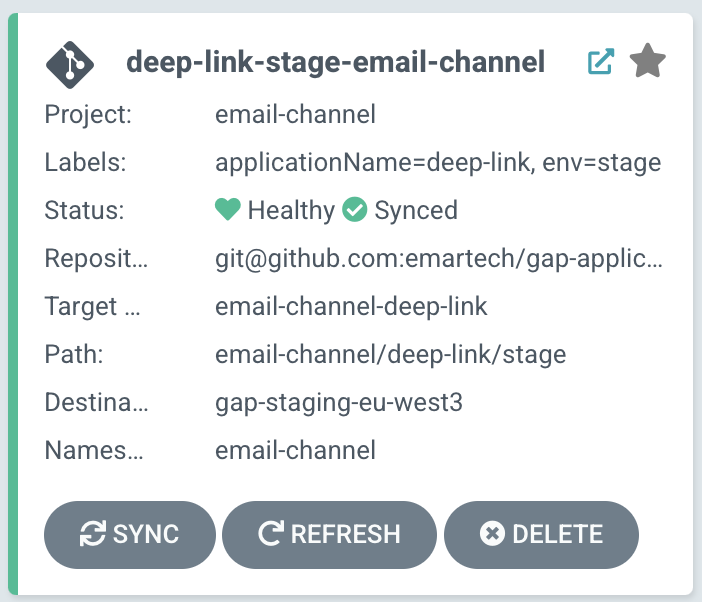
The name of the Argo application built like this: <gap-application-name>-<environment>-<namespace>
Here are a few properties you can see on these cards:
- Project: your application’s Argo project
- Labels: basic information of your application, name, environment, etc
- Status: the status of your application on the K8s cluster, and the status of it being synced or not
- Repository: same for every application, the Application config repository
- Target: the name of your GAP application
- Path: your application’s path in the Application config repository
- Destination: the cluster which this application should be deployed to
- Namespace: your application’s namespace in the K8s cluster
Every team sees only their own applications. The access is based on the same AD group structure what the K8s clusters are using.
You can also sync and refresh your Argo application, or delete it.
If you open an application via its card, you can see its details.
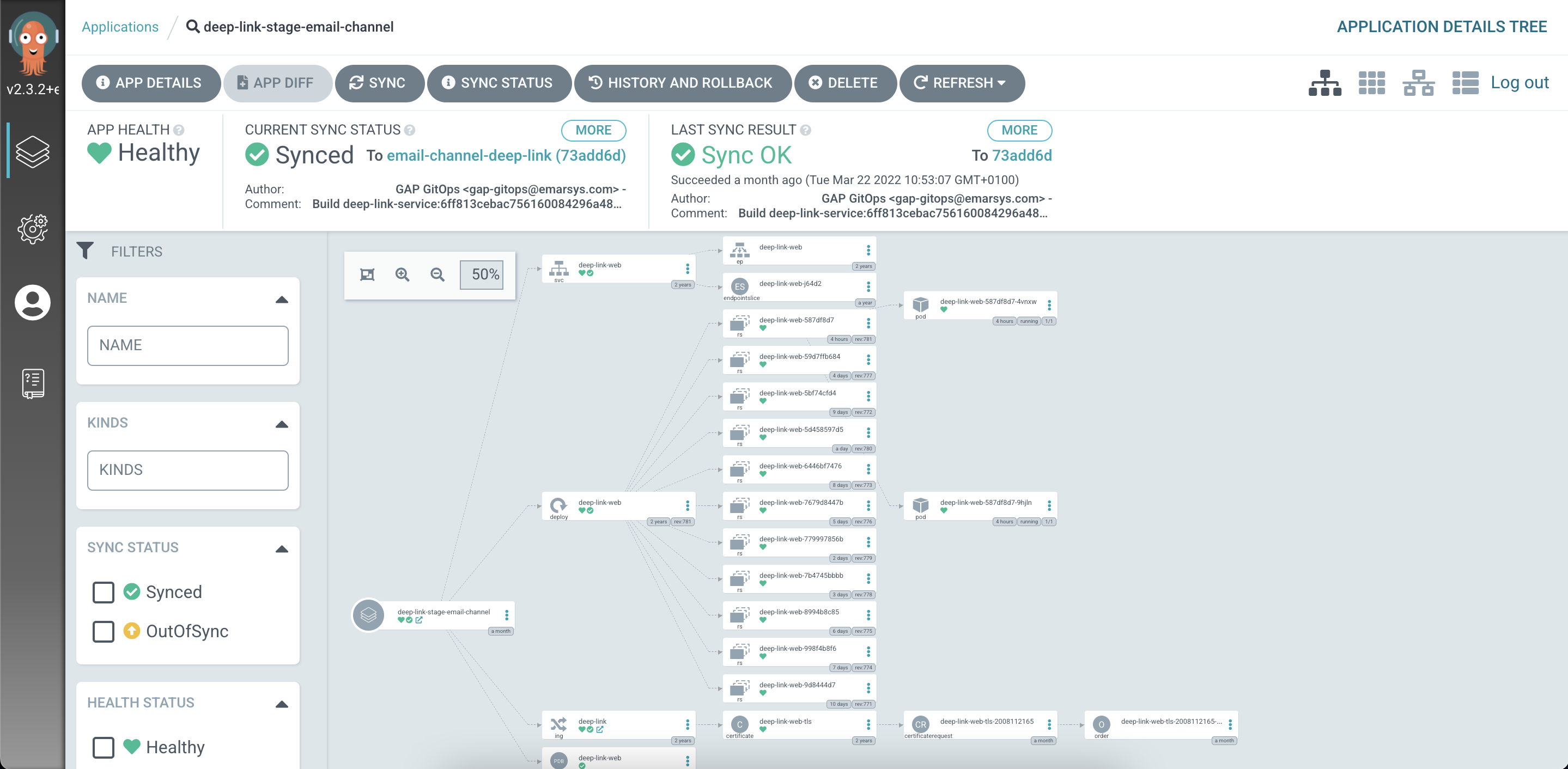
In the top menu
- you can open the detailed information of the application
- see the exact differences, if the application is out of sync
- you can initiate syncing and refreshing
- you can initiate rollbacks
- you can delete the application
In the upper bar you can see
- the status of the application
- if it is out of sync or not
- the result of the last syncing
In the default view the biggest portion shows a detailed graph showing all the K8s objects your application consists of. All of these objects have a detailed view open up if it gets clicked. See the Feature highlights section for more info.
On the left sidebar you can find various filters to use for the object view. The other views (top right corner) are the
- pod view: shows the pods of your applications by nodes, parent resources or top level resources
- network view
- list view: showing your objects as a list
The node based view is excellent for determining if an issue is concentrated on a single K8s node or not.
ArgoCD works by keeping a certain set of manifests (your application manifests in the Application config repository) and the manifests deployed to a K8s cluster in sync. If the two set of manifests are the same, your application is in sync.
Your Argo application gets out of sync if:
- your build pipeline pushes new manifests into the Application config repository but it does not get synced
- your stage Argo application will get synced automatically by the pipeline, but your production Argo application will get out of sync as expected. See here how to promote your changes to production.
- something has changed with your K8s objects within the cluster, an example can be if you manually scaled your application up or down
To view these differences between the repository and the cluster ArgoCD provides a diff view, where you can see the changes one by one.
Syncing an application essentially means to change the state of your application in the K8s cluster to be the same as it is in the Application config repository. This means the latests state of your configurations.
If you want to deploy a version that is not the latest build, you can change the Revision field in the sync panel to the appropriate commit hash. To find the hash, you can go to the GitOps repository and examine the commits on your application’s branch: https://github.com/emartech/gap-applications/commits/<your-namespace>-<your-application>. There you will find the reference to your source code repository commit in the commit message. Keep in mind that after this sync, your application will still be in Out Of Sync state, since it wasn’t synced to latest version.
If you want to roll-back to a commit/state that was deployed earlier see the history and rollback section.
If you open the Sync panel for an application, you will see something like this:
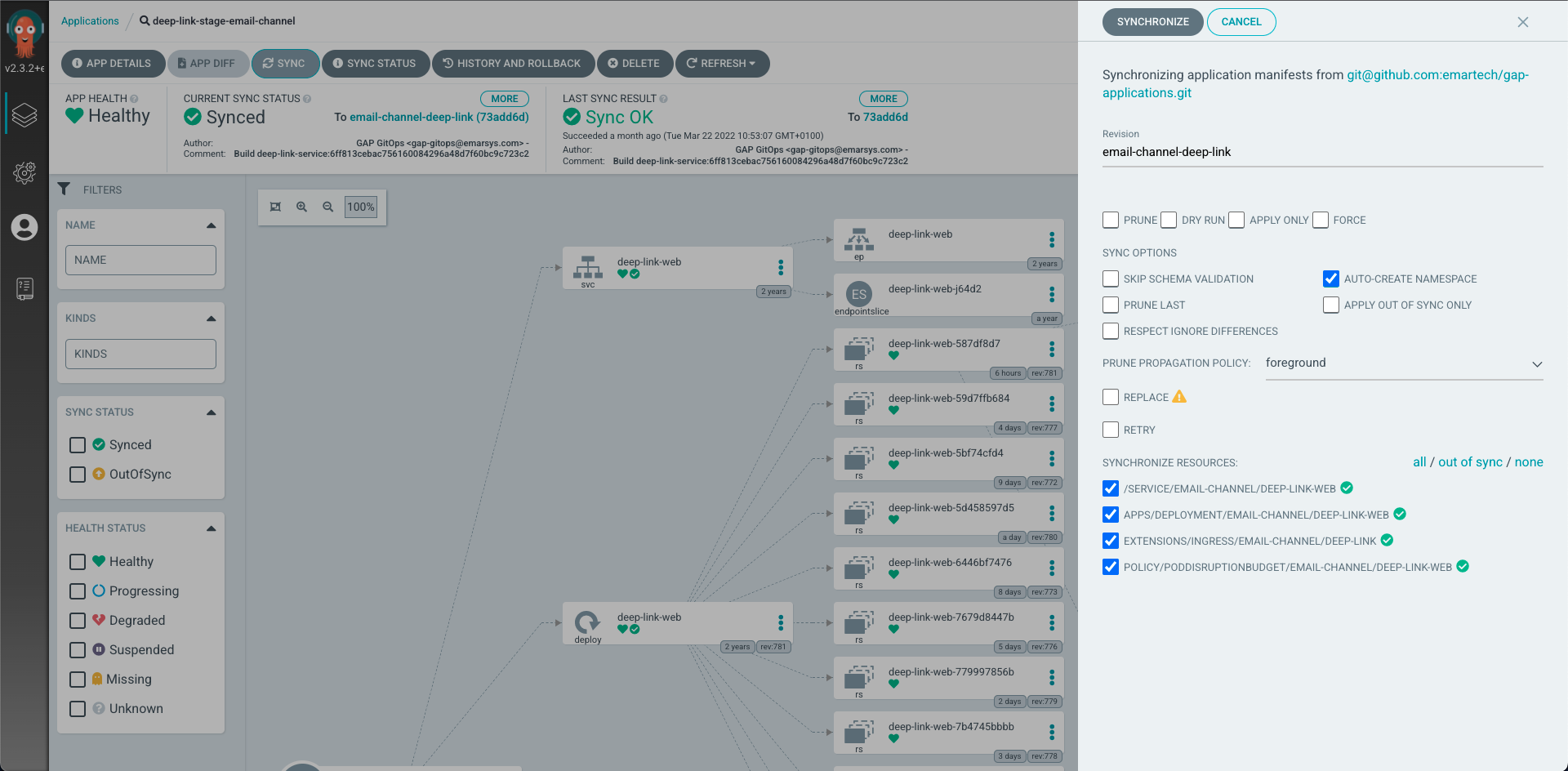
99.5% of the times syncing will be done with the default settings without modifying anything.
Pruning is the one setting which can come up with regular use cases. It means to clean up K8s objects which once were defined, but not anymore. An example could be if the application defined a service account or an in-cluster redis instance, but you have removed it, or you renamed a deployment and the old one should be cleaned up. Syncing it with the default settings will not clean these up, only if the Prune option is enabled.
The other specific settings are used in specific edge cases which will be detailed in separate process documentations.
ArgoCD does not write into the Application config repository. The intended changes for your applications - same as always - should be driven by code changes in your application repository.
The Refresh functionality just forces ArgoCD to check the state of the manifests in the repository and in the targeted cluster.
In ArgoCD the project is the representation of namespaces/teams. Each project contains applications. A user automatically gets access to all applications in all projects which they have write access to on GAP. This role assignment uses the same AD group based mechanism as the namespace access on GAP.
- Healthy: the application is healthy
- Progressing - the application is not healthy yet, but still making progress and might be healthy soon
- Degraded: the application is degraded, meaning that certain objects cannot get into ready state
- Missing: The application is entirely missing from the target cluster.
- Unknown: ArgoCD cannot reach the Argo application’s target cluster to determine the resource’s health
- Synced: the manifests in the Application config repository HEAD and in the Argo application’s target cluster are identical.
- Out of sync: the manifests in the Application config repository HEAD and in the Argo application’s target cluster have differences.
- See the App diff view for the exact differences
By design your pushes to main in your application repository, which triggers you CI builds will end up syncing your stage Argo application automatically.
The production Argo application will get into an out of sync state. This is perfectly fine, and will not change until you sync this application, which is essentially promoting your not yet promoted changes to production.
You are also able to set explicitly which version of your code should be deployed into production. For this, see the History and Rollback section.
If you want to enable your application to be promoted to production on a schedule, you can define in which hour it should happen in your application’s gap.yaml with the autoSyncProduction root level property. By setting the autoSyncHourUTC to a value between 0-23 and enabled: true, your application will be promoted every weekday at the start of that hour.
autoSyncProduction:
  enabled: true
  autoSyncHourUTC: 10
To disable it temporarily, just set enabled to false and push it to your repo, no production deploy is needed.
If you open the History and rollback panel in your Argo application, you will be able to see something like this.
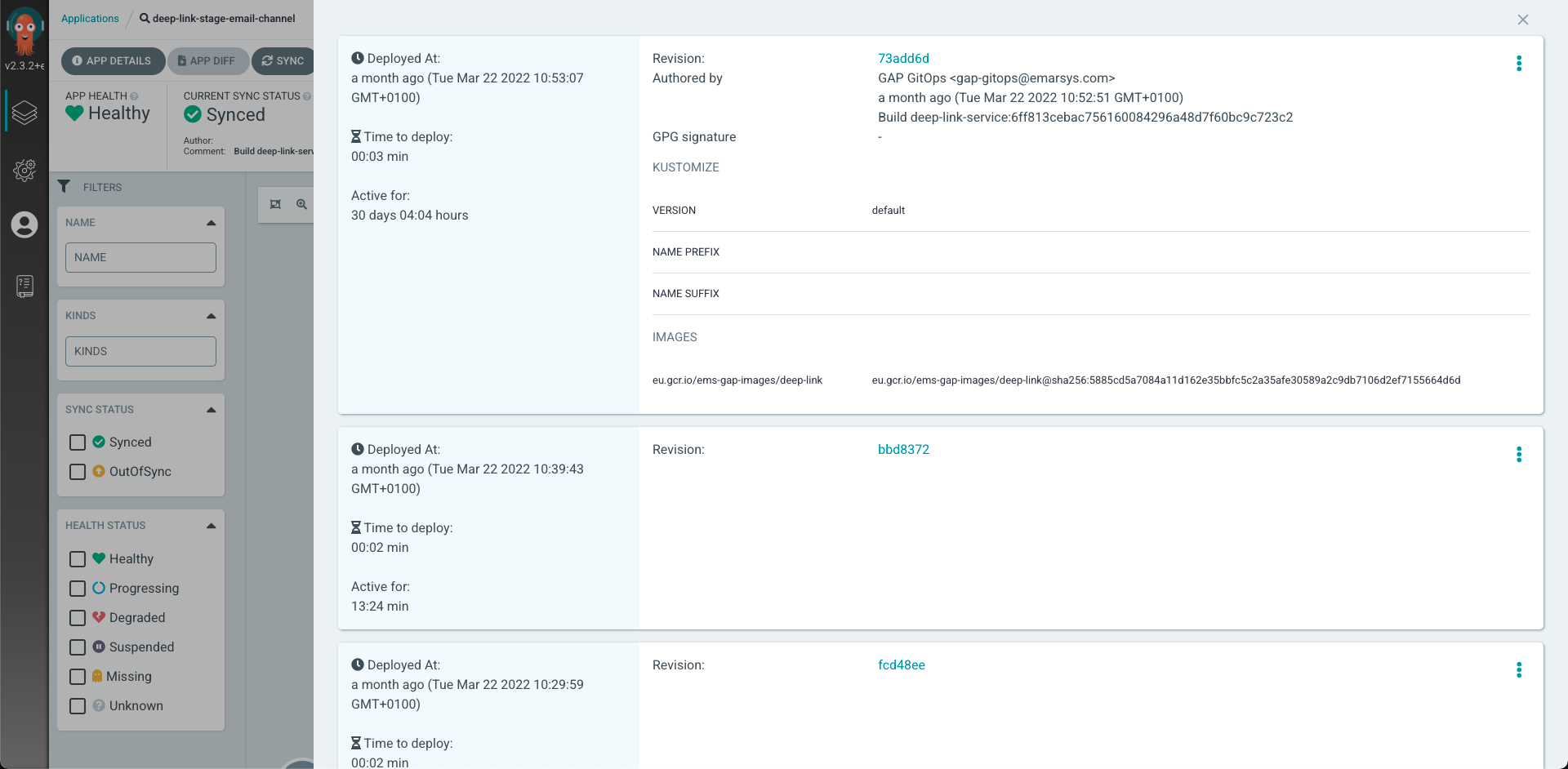
Each of these entries are tied to a commit/build/pipeline run in your application repository.
It is important to notice that every one of these entries are showing two different git hashes. The one named Revision points to the git hash in the Application config repository, this will see less use. The other one at the beginning of the Authored by section (looks like your-app@commit-hash) is the commit hash of the commit in your application’s repository which this entry is associated with. When determining which state should you roll back to, this latter commit hash should be looked for in your repository’s commit history.
To roll back back to a certain commit you need to open the menu on the top right and click Rollback.
When rolling back to a previous commit the prune option is not available. If your current deployment includes resources that were not present in the target older state, these resources will remain after the rollback. Depending on what these extra resources are you might have to manually identify and delete them to ensure your application functions correctly according to the older state’s configuration.
If you roll back your application to a prior commit, Argo will consider it out of sync, as it is not in the latest possible state. This is entirely fine. If you push a new version (stage) or sync it (prod) it will become synced once again.
These entries are on one hand reflect your code changes because each of them are tied to one of the commits in your application’s repository, but they are not mirroring all your commits in your repository, only those which were deployed by the pipeline using Argo. Thus you will NOT be able to roll back to a version with ArgoCD which was deployed before you have migrated your application to use the new pipeline.
By default ArgoCD keeps 10 recent versions of your application. To look back further in the past, we keep ArgoCD audit logs for 365 days. Logs can be found in the sap-gap-headquarters GCP project in the ems-audit log bucket (here). You can query the logs similar to the following to see your sync history:
jsonPayload.involvedObject.name:"gap-docs-prod-cloud-platform"
jsonPayload.message:"initiated sync"
jsonPayload.involvedObject.name: the full name of the ArgoCD app, including environment and namespace
The resulting log message will look like this:
***@emarsys.com initiated sync to cloud-platform-gap-docs (b70b03ee4f69c75179371c4c9a1e539b7da0a589)
where the hash refers to the GAP Applications GitOps repo commit, from where it can be traced back to a source code commit as well.
You can easily set up Slack notifications for your application signaling your Application’s health and sync status.
- Add the
Argo Botapplication to said channel. - Set the
slackNotificationChannelkey in your gap.yaml to the channel name you want to receive notifications into. - Commit & push
These notifications does not substitute any monitoring you already have or should have set up. You should consider these notifications only as signals, meaning in the non healthy cases you have to check the state of your application in the cluster and/or your monitoring.
Though ArgoCD is capable of signaling the state of your application - if it is healthy or degraded (eg.: stuck in a crash loop) - at this point do not see ArgoCD as a place to alert from. Please rely on your existing alert configurations via Elastalert or GAP alerts
If you have too many applications,feel free to play around with the search bar and the filter functionalities on the left side panels. You can also also “pin” your application as favorites by clicking on the star icon in the top right corner of their card.
In the detailed application view you can open a detailed view for your pods or deployments (and any other object) to be able to see their logs and events streamed right out from the clusters. This makes for example debugging a failing deployment one step easier.
In the detailed application view you can open a detailed view for your K8s objects to be able to see the K8s manifests of the object selected. Here you can also see if the manifest currently on the cluster differs from the manifests in the Application config repository.
If ArgoCD is down it does not mean that your application is down. You can still reach your the K8s clusters via kubectl, k9s etc to check the state of your application.
If ArgoCD is down but deploying the new version of the application is critical due to an incident you can still achieve it manually.
After an ArgoCD downtime it can happen that your applications are shown as out of sync, especially if in the meantime you have applied modifications by hand. In this case please review the differences and resolve them via Syncing the application or adding the changed configuration to your repository.